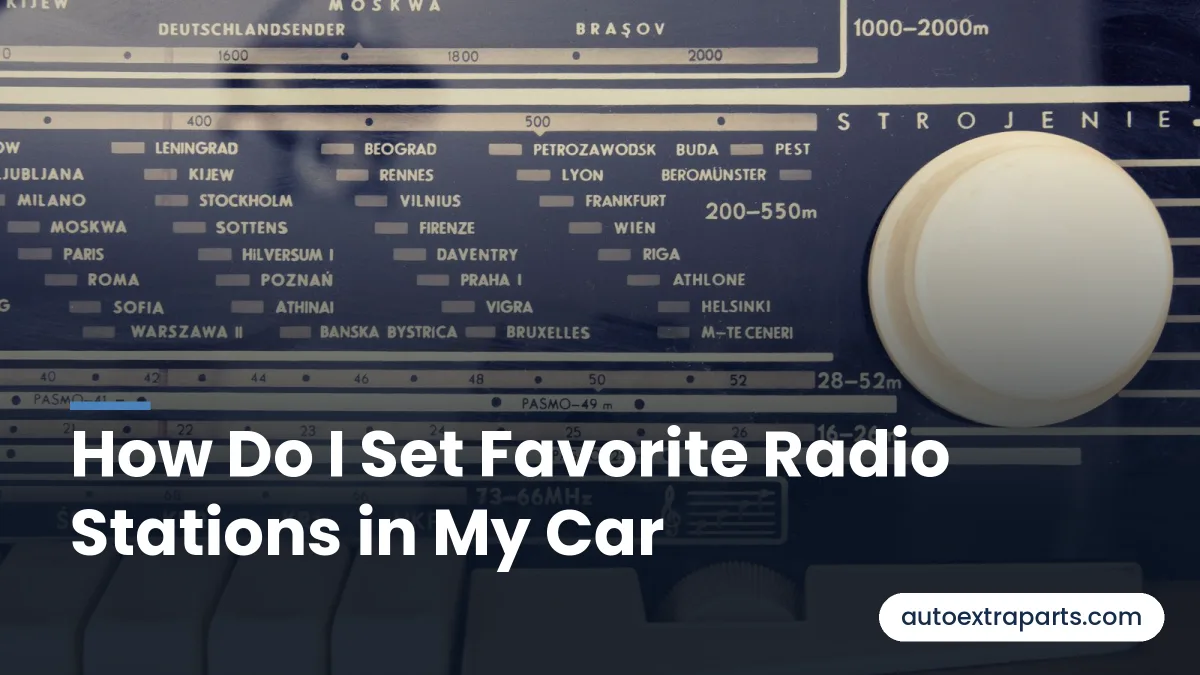
How Do I Set Favorite Radio Stations in My Car
As an Amazon Associate we earn from qualifying purchases. Guides are for general information; always check your owner's manual and consult a qualified mechanic when unsure.
Finding your go-to stations takes a few simple steps. When it comes to How Do I Set Favorite Radio Stations in My Car, having steady, tested guidance makes all the difference. The process changes by car brand and radio type.
You might use buttons, touch screens, or steering controls. Knowing your system helps you save time at the wheel. It also keeps your drive more fun and safe. Always follow official safety and maintenance guidelines for best results.
Write down your top stations on paper first. This stops you from guessing while driving. You can set favorites in minutes with the right method. Most cars use FM or AM bands. Some newer models add HD Radio or RDS data.
These extra signals give song names and station IDs. They help you pick the best preset slots. Your owner’s manual lists the exact steps for your car. It also shows which buttons control the radio.
Essential Guide to How Do I Set Favorite Radio Stations in My Car: Key Insights
Many cars let you change stations without touching the radio. Steering-wheel buttons are the fastest way to switch. You can scan for new music while keeping your hands on the wheel. Knobs on the dash also store presets in some models. Both methods work well for daily commutes.
Your steering controls may differ by car brand. Some use up and down arrows to change stations. Others use a thumb wheel to scroll through frequencies. A few cars have a dedicated “Fav” or “Preset” button. Press it once to see your saved list. Press it again to choose a station. For complementary picks and expert testing advice, see our guide on How Do I Get Into My Car If I Locked the Keys Inside?.
- Steering Wheel Up/Down: Hold the arrow to skip stations. Release when you hear your favorite song. The display shows the station name or frequency.
- Thumb Wheel Scroll: Turn the knob slowly through the dial. Stop on the station you want. Then press the knob to save it to a preset.
- Preset Button Hold: Find a station you love first. Press and hold the preset 1 button for two seconds. The screen will confirm the save with a beep.
- Quick Recall: Tap a preset button to jump to that station. This works even when the radio is off. It saves you from searching again.
Infotainment Touchscreen Navigation for Preset Storage
Touch screens are common in newer cars. They use menus to store your favorite stations. You open the radio app first. Then you tap the screen to find the save option. The steps vary between Apple CarPlay and stock systems. But most follow a similar pattern of taps and holds.
CarPlay and Android Auto can change how presets work. These apps mirror your phone’s radio apps. They may not save to the car’s memory. Instead, they save to your phone’s app list. Check your phone’s radio app for saved stations. You can still use steering controls to switch between them.
- Open Radio App: Tap the radio icon on the home screen. The main menu shows FM, AM, and preset tabs. Swipe left to find the preset list.
- Tune and Save: Use the on-screen dial to find a station. Tap the star or heart icon next to the frequency. The system adds it to your preset list.
- CarPlay Limitation: CarPlay may not save presets to the car’s brain. It saves them to your iPhone’s radio app. Update your phone’s app to fix save errors.
- Android Auto Steps: Open the media app on the car screen. Choose the radio tab. Long press a station to add it to favorites.
When Favorites Don’t Save: Diagnosing Memory and Antenna Failures
You press save, but the station vanishes. That stings. Radio presets rely on stable power and a clean signal path.
A weak antenna often causes lost stations. Corroded connectors block the signal. Your car’s radio can’t store what it can’t hear well.
- Antenna Cable: Check the cable run from the mast to the radio deck. A pinched or bare wire kills signal strength.
- Ground Strap: A loose ground causes memory wipeouts. Attach the ground wire tightly to the chassis bare metal.
- Fuse Panel: Check the radio memory fuse. A blown fuse cuts power to saved stations when the engine is off.
- Battery Voltage: Low battery voltage tricks the radio into clearing memory. Test your battery if presets vanish often.
Some systems clear presets after a full battery disconnect. You must re-scan and save stations again after a jump start.
Corrosion on the antenna mast is a hidden culprit. Rain and road salt eat away at the metal. A gentle wiggle at the base can reveal a loose fit. Replacing a cheap mast is far easier than chasing ghost stations.
Signal strength also drops in tunnels and deep garages. The radio loses the station mid-save and drops it from memory. Try setting presets only in open areas with strong reception. This small habit prevents frustration later.
Integrating Smartphone Apps and Bluetooth Streaming with Car Radio Presets
Phone apps change how you save stations. Bluetooth streams music, but FM presets still guide you to live talk and news.
You can pair your phone and keep radio presets handy. The car radio switches sources without losing your saved spots.
- Bluetooth Pairing: Go to the phone settings first. Then select the car radio from the device list to link them.
- App Presets: Apps like iHeartRadio save your own stations. They work over data, not the car’s FM antenna.
- CarPlay and Android Auto: These mirror phone apps to the screen. Radio presets live in the car system, not the phone.
- Audio Routing: Set Bluetooth audio to stream music. Keep the radio tuner active for live broadcasts and alerts.
You want both phone music and live radio at your fingertips. A simple source button toggle handles that mix well.
When you How Do I Set Favorite Radio Stations in My Car. Meanwhile, also streaming, you build a full audio toolkit. Presets give you quick access to live local content.
Bluetooth pairing sometimes drops the radio connection. Your phone may focus on a music app over the tuner. Check your phone’s Bluetooth settings and force the radio to stay active. Some cars let you set a default audio source. Use that feature to keep the radio ready for quick switches.
Live traffic and weather alerts often come through FM radio. Streaming apps can’t replace these local broadcasts. Keeping a preset on your favorite news station ensures you never miss critical updates during your commute.
Maintaining and Updating Station Presets After Factory Resets and Software Updates
A factory reset wipes all your saved stations. Software updates can also clear the preset memory on some models.
You should re-save your top stations after any reset. A few minutes of work now saves you later frustration.
- Re-Scan First: Run a full station scan before saving. This fills the list with available local frequencies.
- Save in Order: Put your top morning station in preset one. Group news, music, and talk by your daily drive.
- Check for Updates: Visit the dealer or check the manual for infotainment software updates. Updates sometimes fix preset bugs.
- Write Them Down: Keep a list of saved frequencies in your glove box. You can re-enter them fast if memory fails.
When you How Do I Set Favorite Radio Stations in My Car after a reset, treat it like setting up a new radio. Take your time and save each one carefully.
Software updates can sneak in during overnight charging. Your car’s infotainment system may restart and clear presets without warning. Some brands now offer a cloud backup for radio settings. Check your car’s app for a sync feature. This small step saves you from rebuilding your list twice.
After a reset, run a full FM and AM scan. New stations may have entered your area since you last searched. A strong signal can reveal a hidden local gem. You might find a new favorite talk show or music channel this way.
Comparing Radio Preset Systems Across Major Brands
Ford and Chevrolet often use dedicated preset buttons. Their systems store up to six FM and six AM slots. Press and hold a button to save the current frequency. The display shows a small star to confirm the save. For complementary picks and expert testing advice, see our guide on How to Master Gas Station and Car Wash Step by Step.
- Toyota and Honda: Toyota and Honda rely more on touchscreen menus.
- You Tap: You tap the preset tab and choose an empty slot.
- System Then Stores: The system then stores the station name and frequency.
- These Brands: These brands often support RDS data for better station identification.
German luxury brands like BMW and Mercedes use complex controls. Their iDrive and MBUX systems let you save stations by name. You can create custom folders for music, news, and sports. The process takes a few extra taps but offers more control.
Luxury brands often include a “My Radio” feature. This stores your complete listening history and favorites. You can sync these settings across multiple vehicles. It is a great perk if you drive more than one car.
Budget brands may limit you to basic FM presets. They might lack HD Radio or RDS support. Check the spec sheet before buying if presets matter to you. A simple radio with six buttons can still serve you well.
Aftermarket head units change the rules completely. Brands like Pioneer and Kenwood offer large preset banks. You can save over 30 stations across FM, AM, and HD bands. These units often include color displays and customizable labels.
When you compare brands, look for RDS support. This European standard sends station names and program types. It works on FM signals and helps you find talk or music fast. Not all cars have it, but it adds real value.
Why Your Car Radio Clears Presets and How to Stop It
A dead battery is the top reason presets vanish. When the voltage drops too low, the radio forgets saved stations. This often happens in cold weather or after a long shutdown.
- Prevent This: You can prevent this with a simple memory saver device.
- It Plugs: It plugs into the OBD-II port or cigarette lighter.
- It Keeps: It keeps a small charge flowing to the radio when the car sits unused.
Another common cause is a loose antenna connection. The radio can’t hold a strong signal. It drops weak stations from memory to save space. Check the antenna cable behind the radio deck once a year.
Some cars have a setting that clears presets after a battery disconnect. This is a safety feature in older models. Newer vehicles usually keep memory through a full battery removal. Check your owner’s manual to see if your car does this.
How to Organize Your Presets for a Smarter Daily Drive
Think about your daily routine before you save stations. Group them by purpose, not just by frequency.
- Put Your Morning: Put your morning news station in preset one.
- Place Your Favorite: Place your favorite music station in preset two.
- Add a Traffic: Add a traffic or weather station in preset three.
- This Setup Matches: This setup matches the flow of a typical commute.
Use the AM band for talk radio and sports. Save AM stations in the higher preset numbers. FM music stations work best in the lower slots.
You can also create a weekend preset list. Swap out weekday talk for a music station you love on Saturdays. This small change makes your drive feel fresh and personal.
Keep one slot open for discovery. Leave preset six empty during the week. Use it to save a new station you found by accident. It keeps your radio feeling alive and dynamic. For complementary picks and expert testing advice, see our guide on How to Master Gas Station Car Parking Step by Step.
| Brand | Preset Buttons | Max Stations | Scan Type |
|---|---|---|---|
| Toyota | 6 hard buttons | 6 FM + 6 AM | Seek or scan |
| Ford | Touchscreen presets | Up to 36 | Auto scan |
| Honda | 6 preset buttons | 6 FM + 6 AM | Manual seek |
| Chevrolet | Touch + steering | Up to 30 | Band scan |
Frequently Asked Questions
Can I Save the Same Station on Both Fm and Am Presets?
Yes. You can store a station on an FM preset. Its AM counterpart on a separate button. The radio keeps them in different banks.
Why Does My Car Radio Reset Presets When I Turn Off the Ignition?
A weak battery or a loose ground wire often causes this. The radio loses power memory and drops all saved stations.
Do I Need a Special Antenna for Hd Radio Presets?
You need an HD Radio-ready receiver. The standard antenna works fine. HD stations appear as sub-channels on your FM dial.
Can I Set Favorite Stations Through the Steering Wheel Controls?
Yes, many cars let you save stations using steering wheel buttons. Press and hold the preset button to store the current station.
How Do I Know If My Infotainment System Supports Radio Presets?
Check the owner’s manual or the radio menu. Look for a “Presets” or “Favorites” option in the audio settings.
Final Thoughts and Next Steps
Setting your favorite stations makes every drive smoother. You skip the fiddling and go straight to the music or news you love. Take five minutes after your next drive to set up those presets properly.
When you How Do I Set Favorite Radio Stations in My Car with care, you build a personal audio map for your routes. Check your antenna connections and keep a spare list of frequencies. Your radio will reward you with clear, ready-to-go sound every time you turn the key.
A few simple habits keep your presets working for years. Write down your saved stations in the glove box. Check the battery voltage if presets vanish without reason. Replace a corroded antenna mast before it causes more dropouts.
Use your presets to build a drive that fits your mood. News for the morning rush. Music for the weekend cruise. Sports for the big game day. Your car radio becomes a personal guide, not just a noise box.