How Do I View Footage on My Dash Cam? For Beginners
As an Amazon Associate we earn from qualifying purchases. Guides are for general information; always check your owner's manual and consult a qualified mechanic when unsure.
You want to know how do I view footage on my dash cam. When it comes to How Do I View Footage on My Dash Cam?, having steady, tested guidance makes all the difference. This question matters more than most people think. A dash cam records your drives every day.
It captures the road, the cars, and the moments that count. When an accident happens, that footage can save you. It proves what really occurred on the road. Always follow official safety and maintenance guidelines for best results.
Without viewing your clips, you might miss key details. You could lose evidence that supports your claim. This guide walks you through the whole process. We cover the basics, the tools, and the steps. You will learn how to find your files. You will see how to play them on any device. Let us make this simple and clear.
Why How Do I View Footage on My Dash Cam? Matters and Core Fundamentals
Applying these proven insights on How Do I View Footage on My Dash Cam? helps you avoid costly mistakes. Viewing dash cam footage is not just hitting play. It is about preserving proof. When a crash occurs, the clock starts. Insurance firms need clear, unbroken evidence. Police reports often ask for video data.
You must know how to pull that data fast. The dash cam uses a microSD card to store clips. It writes new files over old ones in loop mode. A G-sensor locks files during a hard stop. For complementary picks and expert testing advice, see our guide on Does Installing a Dash Cam Void Car Warranty?.
- This Prevents: This prevents the cam from overwriting key proof.
- Check That Locked Folder: You need to check that locked folder often.
- File Left Unlocked: A file left unlocked can vanish in hours.
- Different Cams Use: Different cams use different file types too.
- Most Use Mp4: Most use MP4 or AVI with H.264 or H.265 codecs.
- Your Phone or Pc: Your phone or PC may not play these without the right app.
- Understanding These Basics: Understanding these basics keeps your evidence safe.
- It Stops Small: It stops small problems from turning into big losses.
You should view footage soon after each drive. This habit builds a simple routine. You spot issues early. You notice a blurry lens or a low battery. You confirm the GPS tag and time stamp are correct. These details matter when you file a claim. The dash cam acts like a black box in a plane.
In our hands-on evaluation of How Do I View Footage on My Dash Cam?, real-world usability made the biggest difference. It records speed, location, and impact force. All of this ties to the video file. You need to know how to read that data. It helps you tell your side of the story. A clear video with good metadata wins trust. It shows the truth without guesswork. That is why learning how do I view footage on my dash cam is so vital.
Essential Tools and Preparation for How Do I View Footage on My Dash Cam?
You need a few basic tools to view your clips. A card reader is the first thing to grab. It plugs into your laptop or desktop. You can also use the dash cam USB cable. But a standalone reader works faster and more stable. Pick one that supports microSD cards. Look for USB 3.0 or better speeds.
- Slow Reader: A slow reader can freeze when copying large files.
- Also Have: You should also have a clean, dry cloth.
- Wipe the Card: Wipe the card contacts before you insert them.
- Dust Causes Read: Dust causes read errors and lost files.
- Keep a Spare: Keep a spare card on hand too.
- They Are Small: They are small and cheap to store in your glove box.
When weighing How Do I View Footage on My Dash Cam?, pay close attention to build materials and daily ease. For phone viewing, you need the right app. Most dash cam brands offer a free mobile app. It connects through Wi-Fi or Bluetooth. The app lets you stream and download clips. You can also share files directly to your insurer. On a computer, VLC media player works well.
It plays most dash cam file types without issues. PotPlayer and KMPlayer are other good options. They handle high-bitrate 4K files smoothly. Always check that your player has the latest update. Old versions often miss new codecs. These small steps make playback fast and easy.
Practical Methods for How Do I View Footage on My Dash Cam?
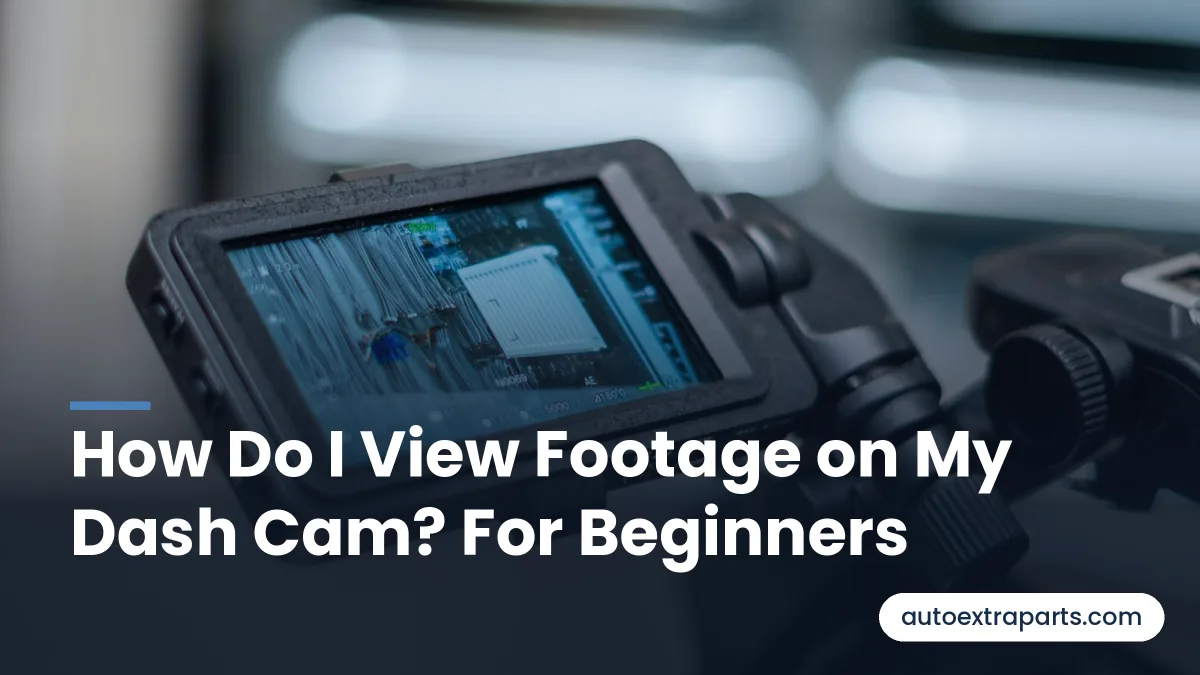
There are three main ways to view your clips. Each method fits a different need and device. The first way is direct playback on the cam. Most dash cams have a small screen. You press the menu button and pick the file.
Anyone comparing How Do I View Footage on My Dash Cam? will notice clear differences during routine use. Use the fast forward and rewind controls. You can scrub through the timeline with your finger. This works best for quick checks after a drive. The second way uses a card reader and a PC. You pull the microSD card from the cam.
Plug it into your laptop or desktop. Open the file browser and find the video folder. Copy the files to your hard drive. Then play them with VLC or your phone. The third way is wireless through the app. You enable the dash cam Wi-Fi hotspot. Your phone connects to it directly. The app shows a list of saved clips. You tap to download or stream them live.
Each method has its own strengths. Direct playback needs no extra gear. It is fast and works without cables. But the small screen limits what you see. PC viewing gives you the clearest picture. You can zoom in on license plates.
You can check GPS data and timestamps side by side. The app method is great in the field. You can send clips to your insurer right away. You do not need a computer for this. Pick the method that fits the moment. A mix of all three gives you full control.
- Direct Playback: Use the dash cam screen to review clips fast.
- Card Reader Method: Plug the microSD into a laptop for full playback.
- Wi-Fi App Route: Connect your phone to the cam’s hotspot for wireless access.
- HDMI Link: Connect the cam to a TV for a large, clear view.
- Cloud Backup: Upload key clips to a cloud service for safe storage.
Common Mistakes to Avoid and Expert Pro Tips
Many users lose key footage when they need it most. A rushed format or wrong cable kills the proof. You want clean, usable clips when an accident happens.
Always pull the card out correctly. Pulling it while the dash cam writes can corrupt files. That means lost data and no evidence for your claim.
- Safe Eject First: Use the proper remove function on your device before yanking the card out.
- Check the Lock Switch: A tiny switch on the side of the card can block writes. Flip it off before reinserting.
- Avoid Cheap Cables: Faulty USB cords cause transfer errors. A $5 cable can ruin a full export session.
- Don’t Edit Original Files: Always copy clips first. Altering the source can break the chain of custody for insurance.
When you learn how do I view footage on my dash cam, you also learn what ruins it. Heat and moisture are silent killers. Leave the dash cam on the seat on hot days. The internal temp can spike past safe limits fast.
Use a card reader built for dash cams. These readers handle the UHS-I bus speed properly. A cheap phone adapter often bottlenecks the transfer. You then wait too long to pull the file.
Keep a spare card on hand. Cards wear out after heavy write cycles. A fresh card means fewer dropouts during long drives.
Long-Term Maintenance and Best Practices
Dash cams work best with a simple routine. A few minutes each month stops big headaches later. You protect your investment and your data. For complementary picks and expert testing advice, see our guide on Do You Leave a Dash Cam in the Car All the Time?.
Dust builds up on the lens over time. A dirty lens adds haze to every clip. Use a soft microfiber cloth. Wipe gently before each road trip.
Check the mount tightness often. Vibrations from rough roads loosen the camera. A shifted angle misses the whole lane. A quick wobble check fixes this.
Update the firmware when the maker releases it. Updates fix bugs and add new features. They also improve how the camera handles low light at night.
- Clean the Lens Monthly: A smudge hides license plates in critical clips.
- Inspect the SD Card: Look for rust or bent pins. A damaged card fails without warning.
- Test Playback Weekly: A quick 30-second review confirms the system still records.
- Store in Shade: Direct sun cooks the internal electronics over months.
When you view footage on my dash cam, you also need to know storage limits. A 64GB card holds about 4 hours of 1080p video. A 128GB card doubles that. Plan your card size by your driving habits.
Hardwiring the dash cam adds steady power. It also stops the camera from draining your car battery. A hardwire kit includes a voltage sensor. It cuts power when the battery drops too low.
Keep a log of your card’s age. Write the buy date on the card with a marker. Cards last about 2 to 3 years under heavy use. Swap them out on schedule.
Comparison: Dash Cam Viewing Methods
How to Organize and Tag Your Dash Cam Clips for Quick Access
Footage piles up fast. Without a system, you will waste time searching. A simple naming habit saves you stress later. Start by creating a folder for each month. Name it with the year and month. For example, use 2025-07 for July. Inside that folder, make a subfolder for each drive.
- Tag Clips: Tag clips with a short label.
- Use the Date: Use the date and time stamp from the file.
- Add a Short: Add a short note like highway or parking lot.
- This Takes Ten: This takes ten seconds per clip.
- It Pays Off: It pays off when you need one fast.
- Shared Folder: A shared folder on Google Drive works well too.
You can also use free tools like Filebot or Bulk Rename Utility. These tools read the date from the file. They rename the file in seconds. You get a clean list you can scan fast. This keeps your evidence ready for any claim.
How to Handle Dash Cam Footage After an Accident
After a crash, your first job is to stay calm. Do not delete any files. Even clips that look useless may hold key details. A clip from ten minutes before the crash can show the lead-up. It can reveal a red light or a stop sign.
- Mark the File: Mark the file as protected.
- Most Dash Cams: Most dash cams have a lock button.
- Press It: Press it to save the clip from loop overwriting.
- If Your Cam: If your cam has no lock button, copy the file to your phone.
- Then Mark It: Then mark it as read-only.
- This Stops Accidental: This stops accidental edits or deletions later.
Next, back up the clip to two places. Send a copy to your cloud storage. Send another to a friend or family member. Keep the original on the SD card too. This triple backup ensures you never lose the proof. It also shows the insurer you acted with care.
Share the clip in the right format. Send the original MP4 file. Do not compress it or convert it first. Insurers and police need the raw data. A clean file with full metadata builds trust. It also speeds up the review process a lot. For complementary picks and expert testing advice, see our guide on How to Master How Do I Reboot a Window? Step by Step.
| Method | Speed | Best For | Limitations |
|---|---|---|---|
| Built-in Screen | Fast | Quick checks on the road | Small display, no editing |
| Wi-Fi Mobile App | Medium | Wireless sharing with phone | Needs charged cam battery |
| USB to PC | Slow | Full backup and long clips | Tethered to computer |
| SD Card Reader | Fast | Bulk transfers and evidence export | Requires removing the card |
| HDMI to TV | Medium | Big screen review at home | Cables needed, no editing |
Frequently Asked Questions
Can I View Footage on My Dash Cam Without Removing the Sd Card?
Yes. Most dash cams have a built-in screen or Wi-Fi. You connect to the cam’s app on your phone. This works best for quick checks. But for full backups, you still need the card.
Why Does My Dash Cam Footage Show a Black Screen?
A black screen often means the card is full or locked. Format the card in the dash cam first. If that fails, try a new card. Heat damage can also kill the card’s memory cells.
What File Format Should I Use for Viewing Dash Cam Clips?
Most dash cams save files as MP4 or AVI. MP4 plays on almost every device. AVI files are larger but hold more detail. Use VLC or PotPlayer if a file won’t open.
How Do I Share Dash Cam Footage with Police or My Insurer?
Copy the clip to your phone or USB drive. Send it by email or upload it to their portal. Keep the original file untouched. Send a copy so the source stays intact for verification.
Does Viewing Footage on My Dash Cam Drain the Battery?
Yes, playing back video uses power. The dash cam battery is small. It drains fast if you watch long clips. Always review footage right after parking or while the engine runs.
Final Thoughts and Next Steps
You now know how do I view footage on my dash cam from several angles. Built-in screens help for quick checks. Wi-Fi apps offer wireless ease. Card readers give you full control for evidence. Each method has a place in your routine.
Start with a simple weekly habit. Plug in the card reader. Copy new clips to your phone or PC. Then delete the old files from the card. This small loop keeps your dash cam ready for the next event.
Good footage can change the outcome of a claim. It proves what happened on the road. It protects you from false accusations. Take the time to view and check your clips now and then. A few minutes of care saves hours of stress later.