How to Know If Your Car Has Navigation for Beginners
As an Amazon Associate we earn from qualifying purchases. Guides are for general information; always check your owner's manual and consult a qualified mechanic when unsure.
You stare at your car’s screen. You wonder if it can guide you. Many modern rides have built-in maps. But not all do. It is not always clear how to know if your car has navigation. This guide helps you find out fast. We will look at simple clues. You will check your dash. You will peek at your VIN. We will cover the basics first.
Practical Methods for How to Know If Your Car Has Navigation
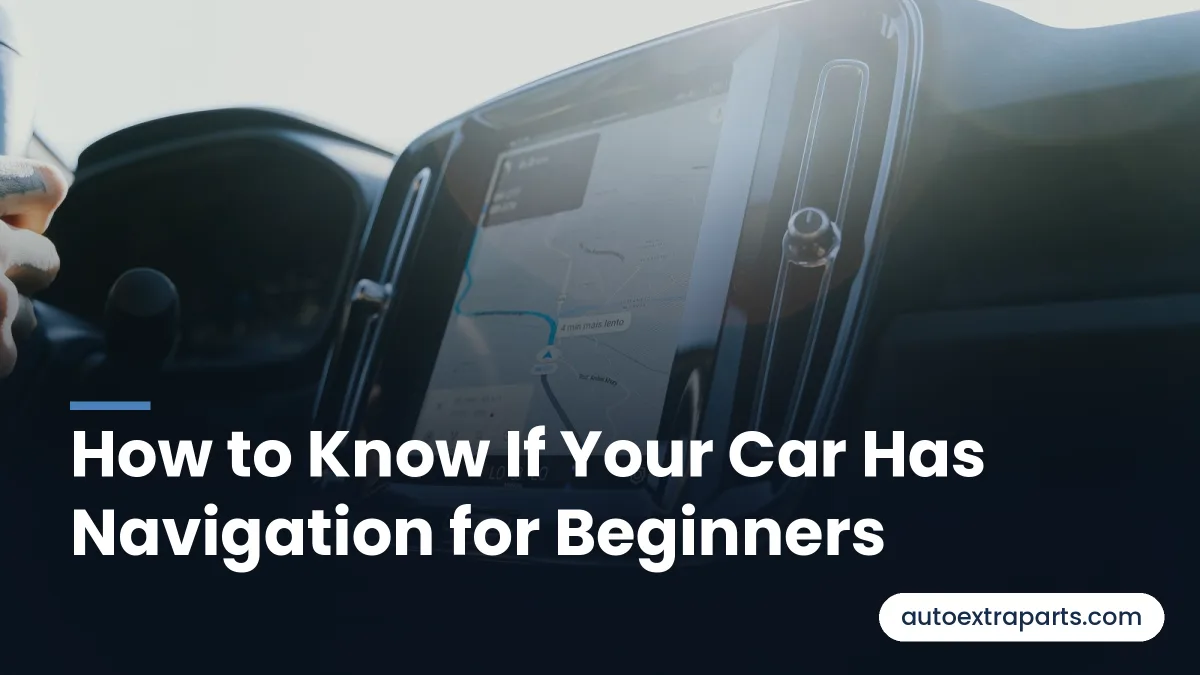
Start with the most visible clue. Look at your center screen. Does it show a map? Does it say “Navigation” on the startup? Many cars use a big display. They call this the infotainment head unit. Always follow official safety and maintenance guidelines for best results.
This screen controls radio, climate, and maps. A dedicated nav button helps too. It often looks like a flag or a arrow. You might find it near the volume knob. Some brands use a “Nav” label on the dash. That small icon is a strong hint.
Applying these proven insights on How to Know If Your Car Has Navigation helps you avoid costly mistakes. Next, check the steering wheel. Do you see buttons with a map symbol? These controls let you set destinations. They also let you zoom in and out. If your wheel has these, you likely have nav. For complementary picks and expert testing advice, see our guide on How Do I Know If My Truck Has Remote Start?.
You can also search for a GPS antenna. It sits on the roof or near the rear view mirror. A small, round pod means your car talks to satellites. That is a key part of any navigation system.
- Screen Check: Look for a dedicated map or navigation icon on the infotainment display at startup.
- Steering Wheel: Find arrow or map-shaped buttons on the wheel that control route guidance.
- Antenna Search: Look for a small, rounded pod on the roof or near the rearview mirror.
- Button Layout: Press any button labeled “Nav,” “Map,” or “Guidance” on the center console.
Decoding the Dashboard and Infotainment Interface Clues
Your car talks to you through icons. A small arrow on the dash means route guidance. You may see a blue or white car symbol. This icon shows your live position on a map. If you see it move as you drive, you have nav.
Some cars show a “GPS” signal bar. That bar fills up when the system locks onto satellites. No bar means no sky view. A solid bar means the system is ready to guide you.
You should also listen for voice prompts. Navigation systems speak to you. They say “Turn left in 500 feet.” A standard radio will not do this. It will only give station names or song data. If your screen shows street names and turn arrows, that is nav.
The display will also show your speed on the map view. This mix of audio and visual cues is a strong sign. You can test it by asking for a route. If it plots a line, you have a working nav system.
- Moving Car Icon: A symbol that tracks your live position on a map confirms GPS nav.
- Voice Prompts: Spoken turn-by-turn directions mean the system can plan active routes.
- GPS Signal Bar: A filled signal indicator shows the car has a clear view of satellites.
- Street Name Display: On-screen labels of roads and upcoming turns show a true nav display.
Locating the Physical Hardware and Antenna Components
Navigation needs special parts. A GPS antenna receives signals from space. You can often find this on the roof. It looks like a small, smooth dome. Some cars hide it in the windshield. It sits near the rearview mirror base.
If you see a small bump or a patch, that is likely the antenna. You can also look under the dashboard. A navigation control module sits there. It is a small box that processes map data. It connects to the head unit with a cable.
Check the back of the screen too. If you can see the wiring, look for a coaxial cable. This cable runs from the roof antenna down to the screen. It carries the weak GPS signal. A factory-installed nav system will have a clean, direct wire path.
Aftermarket kits often use a chunkier external box. You may spot it behind a kick panel or under a seat. That box is a separate nav module. It does the same job but sits apart from the radio.
- Roof Dome: A small, smooth bump on the roof rail often hides the GPS antenna.
- Windshield Patch: A thin, dark strip near the mirror base can be a hidden antenna.
- Under-Dash Module: A small black box behind the dash processes map and route data.
- Coaxial Cable: A thick single wire running from the roof to the screen shows a GPS link.
Tracing Your Vehicle’s Trim Level, Options, and Vin History
Your car’s trim level holds big clues. Higher trims often add nav gear. You can find this info in a few ways. Start by checking the door jamb sticker. It lists the model and trim code. You can also look at the window sticker. Dealers must include this when selling new cars. Both sheets help you trace factory options.
Your Vehicle ID Number tells a full story. The VIN sits on the dash and door frame. You can decode it online for free. Each letter and number means something specific. The 10th character shows the model year. The 4th through 8th digits list the body and trim. Plug your VIN into the maker’s website. You will see a full options list there.
- Door Jamb Sticker: Find the trim code printed on the driver door frame. Match it to your owner’s manual chart.
- Window Sticker: Read the optional equipment section on the dealer window sticker. Look for any nav-related packages listed there.
- VIN Decoder Tool: Enter your full VIN into the automaker’s official website decoder. Check the detailed options report for navigation.
- Owner’s Manual Index: Flip to the navigation chapter in your manual. If the book has a nav section, you have the system.
Distinguishing Factory-Installed Systems From Aftermarket Add-Ons
Factory systems come with your car from the plant. They link to the vehicle’s main computer network. Aftermarket units get added later by you or a shop. Each type looks and acts quite different.
Factory screens often blend into the dash board. They match the rest of the car’s design. Aftermarket screens may sit loose or bulky. The wiring and mounting style gives them away.
Factory nav uses your car’s GPS antenna. That antenna is a small rod on the roof. Aftermarket units have their own separate antenna. You may spot a little puck on the roof. The head unit also looks distinct. Factory screens touch or use simple knobs. Aftermarket screens often have more buttons. They may also run apps like a tablet. For complementary picks and expert testing advice, see our guide on How Do I Know If I Have a 4 or 6 Cylinder Car?.
Some cars have both types at once. A dealer might have added a unit later. You need to check the wiring harness. Factory plugs are neat and factory-colored. Aftermarket wires may have extra adapters. You can also check the make and model. Brands like Garmin and TomTom make add-on units. These brands do not make factory screens.
- Head Unit: Look for the car maker’s logo on the screen frame. Factory units share the same housing style across the line.
- Aftermarket Brand Markings: Check for brand names like Garmin or TomTom on the bezel or rear of the unit.
- Roof Antenna Type: A single small pod on the roof often means an add-on GPS puck, not a factory antenna.
- Wiring Harness Color: Factory wires use standard color codes. Aftermarket kits may use plain or mismatched wire colors instead.
Testing the System and Verifying Active Navigation Functionality
Now you need to test the system for real. Turn the car on and press the nav button. The screen should light up with a map. You may see a satellite signal icon. That icon means the GPS is searching. Wait for it to lock in. This can take one to two minutes. If the map shows your road, the system works.
Try entering a destination to be sure. Use the screen keyboard or voice command. Pick a well-known address near you. The system should plot a route with turns. It will also show distance and time. If you get a route, nav is fully active. If the screen stays blank, check the fuse. A blown fuse can kill the nav display.
Some systems need a live data plan. Older units may use a CD or DVD for maps. Newer ones pull live traffic and weather. You will see a subscription notice on screen. That notice means the service is not active. You can call the maker’s help line. They can tell you if your plan has lapsed. You may need to pay a fee to renew.
- Signal Lock Test: Watch for the GPS icon to turn solid. A blinking icon means the system is still searching for satellites.
- Route Plot Check: Enter a test address you know well. Check the route matches real-world roads and turns.
- Subscription Alert: Look for a “Service Active” or “Map Update” notice on the screen. That tells you if live features are paid up.
- Voice Command Try: Press the voice button on the steering wheel. Say “Navigate to” and a known place. If it responds, the nav software is live.
How to Tell Navigation From a Simple Screen or Infotainment Display
A screen alone does not mean you have nav. Many cars have bright touchscreens. They play music and show camera views. But they may lack map software. You need to look deeper. Check the home screen for a map icon. Look for a “Routes” or “Guidance” menu item.
Try opening the settings. Scroll through the app list. If you see a maps or navigation app, you have it. If you only see radio and climate controls, you do not. A true nav system also has a route bar. It shows the next turn and distance. A basic screen will not show these details.
Some cars have a small nav screen. It is separate from the big infotainment display. This setup is common in older models. The small screen shows a simple map. It may not have live traffic. Still, it counts as a navigation system. You can use it to get basic directions.
- App List Check: Browse the home screen for a dedicated map or navigation app.
- Route Bar Test: A live bar showing next turn and distance confirms active nav.
- Separate Small Screen: A small dedicated map screen counts as nav even if basic.
- Menu Labels: Look for words like “Map,” “Route,” or “Guidance” in the settings.
What to Do If Your Car Has No Built-In Navigation
Do not worry if your car lacks nav. You have several good options. Each choice fits a different budget. You can add guidance without big hassle.
First, try a phone mount. A simple cradle holds your phone. It places the screen at eye level. You can use any map app you like. Google Maps and Apple Maps work well. They give live traffic and reroutes. A mount costs very little. It is the easiest path to add nav.
Second, consider a portable GPS unit. Brands like Garmin make these. They mount on the windshield with suction. They have their own maps and GPS antenna. They do not need a phone. A portable unit works in areas with no cell signal. It is a great backup for road trips.
Third, you can install an aftermarket head unit. This replaces your factory radio. It adds a big touchscreen and built-in nav. Units from Pioneer and Sony are popular. They also add Bluetooth and Apple CarPlay. This fix takes more work and costs more. But it looks clean and factory-like. For complementary picks and expert testing advice, see our guide on How Do I Know If My Trunk Latch Is Broken?.
- Phone Mount: A low-cost cradle that holds your phone for map use.
- Portable GPS: A standalone unit with its own maps and GPS signal.
- Aftermarket Head Unit: A full radio spare with built-in map guidance.
- Smartphone Apps: Free or paid apps that turn your phone into a nav device.
Understanding the Difference Between Gps and Full Navigation
People use the words GPS and nav. But they mean different things. GPS stands for Global Positioning System. It tells you your exact location on Earth. A GPS receiver is a simple chip. It sits inside your phone or car. It talks to satellites to find you.
Navigation is much more. It uses GPS data. But it also has map software. It can plan routes and give turn-by-turn voice prompts. A simple GPS tracker only shows your dot on a map. A full nav system guides you door to door.
Some cars have a GPS tracker but no nav. You may see your location on a screen. But there is no map or route planning. This setup is common in older or base models. You can still use a phone app to add nav. The car’s GPS chip helps the app find you faster.
Newer cars often blur the line. Their nav system uses the car’s GPS. It also pulls live data from the cloud. It checks for traffic jams and road closures. This smart nav gives you the best route. It adjusts as you drive. That is a true navigation system.
- GPS Only: Shows your location on a map but cannot plan a route.
- Full Nav: Plans routes, gives voice prompts, and shows live traffic.
- Hybrid Use: A phone app uses the car’s GPS chip for faster location.
- Smart Nav: Pulls live data from the cloud for real-time rerouting.
Final Thoughts and Next Steps
Knowing How to Know If Your Car Has Navigation helps you drive with confidence. You now have clear steps to check your car. Start with the dash and steering controls. Then look at the VIN and trim level. Test the system with a real route. Each step builds on the last one. You will know your car’s true nav status soon.
Take action on what you found today. If your car lacks nav, pick the right fix. A factory-style unit gives a clean look. A phone mount gives cheap, easy guidance. Either way, you will not get lost again. Now you can hit the road with full control. You know your car and its tools well.